Building a quiz
On the admin page, press New quiz, type a title and press Create quiz. The editor saves as you type and says when the quiz is ready to play, or what is still missing. The quiz list flags quizzes that are not ready yet; search it by title, and sort it by last edit, newest, name or number of questions.
A quiz built from scratch, narrated (transcript).
Questions and slides
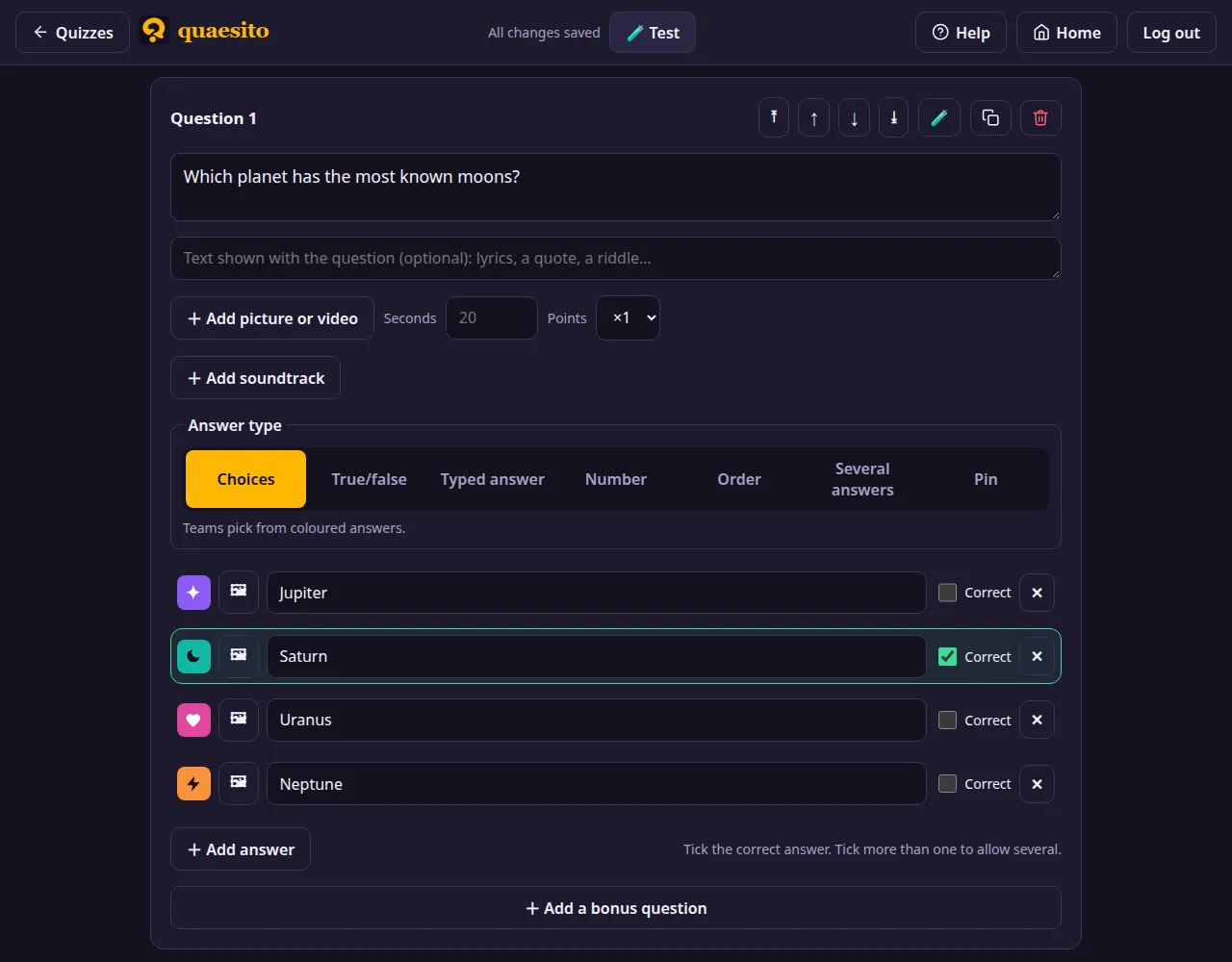
- Add questions with + Add question, and slides with + Add slide: a title, some text and a picture to introduce a round or explain the rules.
- Results slides (with + Add results slide, when answers are revealed at the end) give the results halfway, at an intermission say: they walk through the answers to the questions since the previous results slide, then show the standings with the points each team gained. The review at the end then only covers the questions after the last results slide.
- Move an item with ↑ ↓, or straight to the top or bottom with ⤒ ⤓. Duplicate it or delete it with the icons next to them.
- Shuffle with Shuffle questions: questions are shuffled within each round, slides stay where they are, and you can undo it until you change something else. Shuffle answers does the same for the answers of every multiple-choice question; the right answers stay right.
- Find your way in a long quiz with the strip of numbers beside the list (above it on smaller screens): the items on screen are lit, a red one has a problem, and a click jumps there. Point along it, or slide a finger, to spread out the part you are looking at. The address bar keeps your place, so reloading the page brings you back to it.
- ☰ Table view shows the whole quiz at a glance, a row per question or slide: its type, text, time, points, category and topic. Click a row to open its card, or drag it to move it: with a mouse, hold the button and drag; on a touch screen, hold your finger still for a moment first. The strip of numbers is hidden there.
Each question has an answer type (see question types), a time limit (Time (s), the quiz's default unless you set one) and a points multiplier: a ×2 question earns twice the usual points.
The question library
Quaesito comes with about 2,700 ready-made questions: add them one by one with + From the library, or fill a new quiz with them at random. The button on each question card saves a question of yours to the library, or keeps it in step with the library's copy. See the question library for how all this works, and where the questions come from.
Category and topic
Above the question, Category and Topic say what it is about, say Geography and Capitals. Both are optional; the big screen shows them next to the question number, with the category's icon and colour from the library. They list the library's categories and topics, so questions from your quizzes and from the library are filed the same way. Questions from the library come with theirs filled in.
To file questions under a topic the library lacks, add it on the admin page's Questions tab: + Add a topic, under the categories, opens a pop-up that takes a category (one of the library's, or a new one) and a topic. A new category also gets an icon and a colour, which the big screen shows it with; those other categories already have are greyed out. Added categories and topics are kept on this server; while a topic holds no library questions, the × next to it removes it, and its category goes with its last topic.
Text with the question
Under the question, an optional box takes text to show with it, line breaks kept: the lyrics for "name the song", a quote for "who said it?", a riddle. The big screen shows it under the question, and so do phones when they show the full question.
Shown with the answer
+ Add something to show with the answer takes a text, a picture or a video that stays hidden until the answer is revealed: why the answer is right, a fun fact, the painting the question was about. The big screen shows it under the answers, after each question or in the walk through the answers, depending on when the quiz reveals answers. Phones do not show it.
+ Add soundtrack in the same box adds music or a sound the big screen plays as it shows the answer: the song the question was about, a fanfare. It takes over from the question's own soundtrack, and pauses with the game.
Pictures
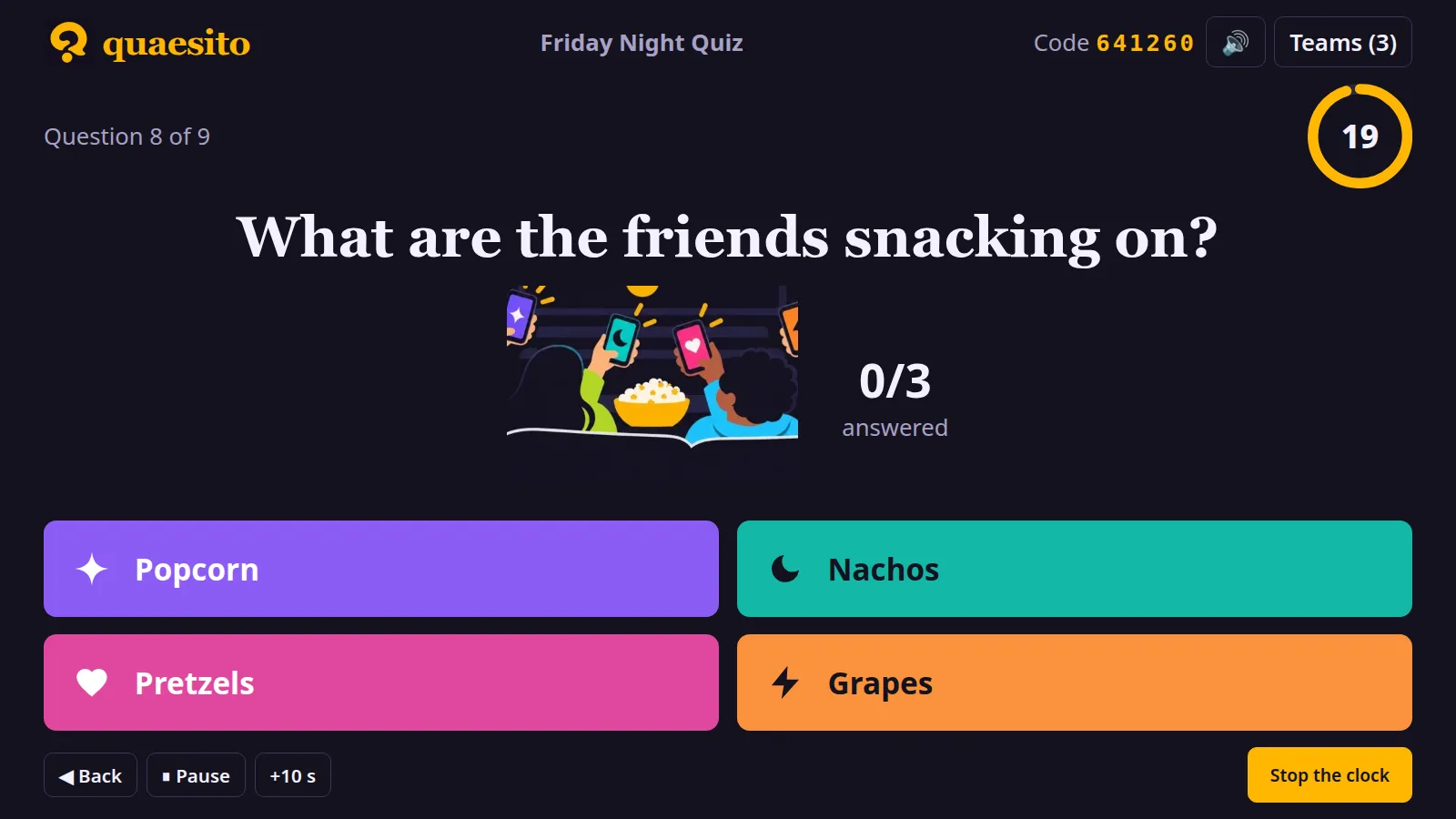
Add a picture to any question. For a guessing game, choose how it appears while the clock runs:
- Show it all, as it is;
- Zoom out from a close-up: it starts five times larger and widens to the whole picture;
- Uncover tile by tile: tiles drop away at an even pace.
With a gradual reveal, set how many seconds the whole picture stays visible before the buzzer. Pictures are resized and re-encoded when uploaded, up to 15 MB.
Videos
Instead of a picture, a question or a slide can show a video (MP4 with H.264, WebM or MOV, up to 200 MB). It plays on the big screen when the question opens, pauses when you pause the game, and plays again from the start when you click it. Pin questions need a picture.
The upload limits can be changed; see configuration.
Pictures, soundtracks and videos can only be uploaded on the computer quaesito runs on, at
http://localhost:8080: not from another computer, tablet or phone, even on the same Wi-Fi. On a
server, open the admin page through an SSH tunnel; see
hosting on the internet.
Soundtracks
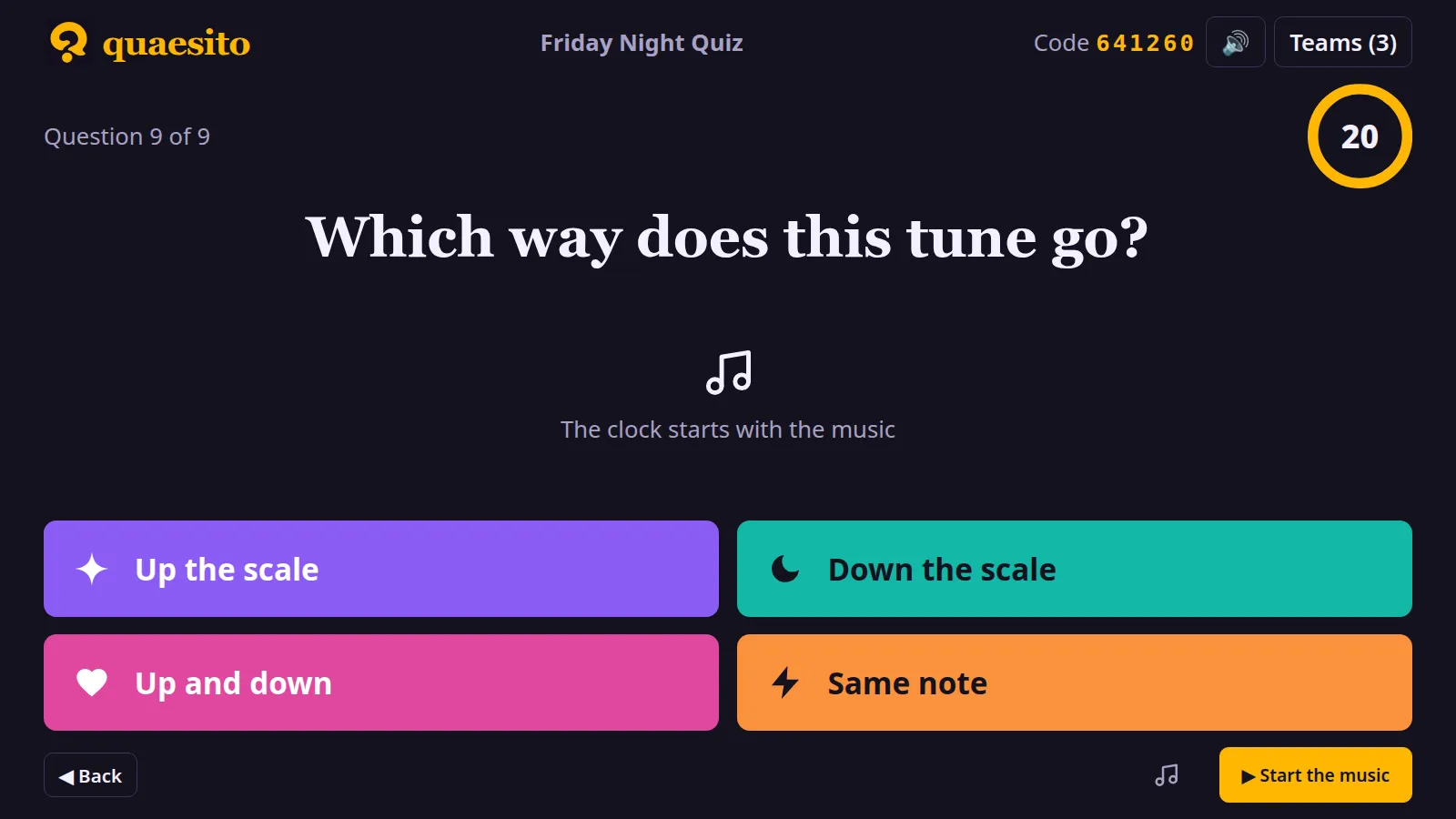
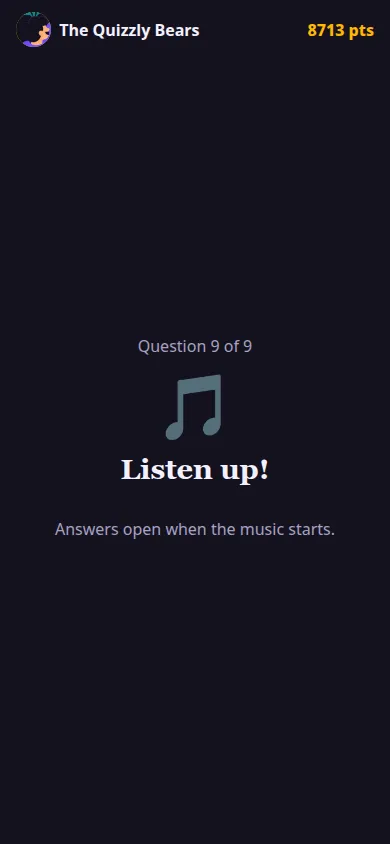
A question can have a soundtrack (MP3, M4A/AAC, Ogg/Opus, WebM, FLAC or WAV, up to 40 MB). The question then waits on the big screen with a full clock until you press ▶ Start the music: the music plays from the big screen and the countdown starts with it. Stop the clock stops the music too; when time runs out instead, it plays on while the answers are shown.
Import and export
The export icon on the admin page downloads a quiz as a .zip with its pictures and
soundtracks. Import on another computer brings it back as a new quiz; older .json exports
import too. Like uploads, imports only work on the computer quaesito runs on. A bar above the list follows big quizzes as they upload, as their pictures and
soundtracks are processed, and as exports download. A quiz made with a newer version of Quaesito asks first, and says what this version
would leave out. The quiz file format page describes what is inside, to write
or generate quizzes yourself.