Getting started
Quaesito runs on one computer, usually the laptop connected to the TV. Everyone else joins from their phones over the same Wi-Fi; no internet connection is needed.
Quick start
- Pick the download for the computer that will run quaesito (see which download).
- Download and unpack it from the latest release, under Assets.
- Start it: double-click
start.bat(Windows) orstart.command(macOS), or run./start.sh(Linux). Allow it through the firewall if asked: that is what lets phones connect. - Log in: your browser opens quaesito. Click the icon and type the admin password shown in the server window.
- Pick a quiz: try the Demo quiz with 🧪 Test, or press New quiz to build your own, perhaps from the question library.
- Start the game: press ▶ Start next to the quiz, and show the big screen on the TV.
- Teams join: each team scans the QR code with a phone on the same Wi-Fi, and picks a name and a picture. Then run the game.
- Something wrong? See troubleshooting.
The rest of this page goes through each step in detail.
Words used in this guide
- Host: the person running the quiz, on the computer quaesito runs on.
- Big screen: the page shown on the TV or projector, with the questions and standings.
- Team: one or more players answering from one phone.
- Quiz: questions and slides you build and keep; a game is one playing of a quiz.
- Admin page: where the host builds quizzes and starts games, behind the admin password.
What you need
- A computer to run quaesito, with a web browser. It does not need anything else installed.
- A TV or projector for the big screen (optional: a laptop screen works for a small group).
- One phone per team, with a web browser, on the same Wi-Fi network as the computer. No app and no account are needed.
Which download
| Computer | Download | Notes |
|---|---|---|
| Windows PC, 64-bit Intel or AMD | quaesito-…-windows-x86_64.zip |
|
| Windows on Arm (such as Snapdragon laptops) | quaesito-…-windows-x86_64.zip |
runs under Windows' built-in x64 emulation |
| Mac with Apple silicon (M1 and later) | quaesito-…-macos-arm64.tar.gz |
|
| Mac with an Intel processor | quaesito-…-macos-x86_64.tar.gz |
|
Linux PC, 64-bit Intel or AMD (uname -m says x86_64) |
quaesito-…-linux-x86_64.tar.gz |
built on Ubuntu 22.04: needs glibc 2.35 or later |
Linux, 64-bit ARM (uname -m says aarch64) |
quaesito-…-linux-arm64.tar.gz |
built on Ubuntu 22.04: needs glibc 2.35 or later |
There is no build for 32-bit systems. To find out which Mac you have, open the Apple menu → About This Mac: Chip means Apple silicon, Processor means Intel.
1. Download and start it
- Download
quaesito-…-windows-x86_64.zip. - In your Downloads folder, right-click the zip and choose Extract All…, then Extract. Put the folder wherever you like, say on the Desktop.
- Open the folder and double-click
start.bat. - If a blue "Windows protected your PC" box appears (quaesito is not signed by a paying publisher), click More info, then Run anyway.
- When Windows asks whether to let quaesito through the firewall, tick Private networks and click Allow: this is what lets phones connect.
A black window opens with the server's log, and your browser opens quaesito. Leave the window open while you play; close it to stop.
macos-arm64 is for Macs with Apple silicon (M1 and later), macos-x86_64 for Intel Macs.
- Download
quaesito-…-macos-arm64.tar.gz(or…-macos-x86_64.tar.gz). Safari unpacks it by itself; otherwise double-click it in your Downloads folder. - Open the
quaesito-…folder and double-clickstart.command. - The first time, macOS says it cannot verify the app, because it is not signed by a paying developer. Click Done (or Cancel).
- Open System Settings → Privacy & Security, scroll down to the message about
start.command, and click Open Anyway. Double-clickstart.commandagain and confirm with Open Anyway (and your password or Touch ID). On macOS 14 and earlier, right-clickingstart.commandand choosing Open, then Open again, does the same. - If macOS asks whether to accept incoming network connections, click Allow: this is what lets phones connect.
A Terminal window opens with the server's log, and your browser opens quaesito. Leave the window open while you play; close it to stop. Next time, a double-click is enough.
For 64-bit PCs: linux-x86_64 for Intel and AMD processors, linux-arm64 for ARM ones
(uname -m tells which).
- Download
quaesito-…-linux-x86_64.tar.gz(or…-linux-arm64.tar.gz). -
Unpack it and start it from a terminal:
tar xzf quaesito-*-linux-x86_64.tar.gz cd quaesito-*-linux-x86_64 ./start.sh -
If your computer runs a firewall, let phones reach port 8080, for example with
sudo ufw allow 8080/tcp.
The terminal shows the server's log, and your browser opens quaesito. Leave it running while you play; press Ctrl+C to stop.
The server window shows where quaesito is and the admin password:
────────────────────────────────────────────────────────────────────────
  quaesito is running

  On this computer:  http://localhost:8080
  Phones join at:    http://192.168.1.20:8080
  Admin password:    3f9c1a7b2e44   (set QUAESITO_ADMIN_PASSWORD to choose your own)
────────────────────────────────────────────────────────────────────────
The browser did not open?
Open http://localhost:8080 yourself, on the computer running quaesito. If that does not load either, see troubleshooting.
2. Log in as admin
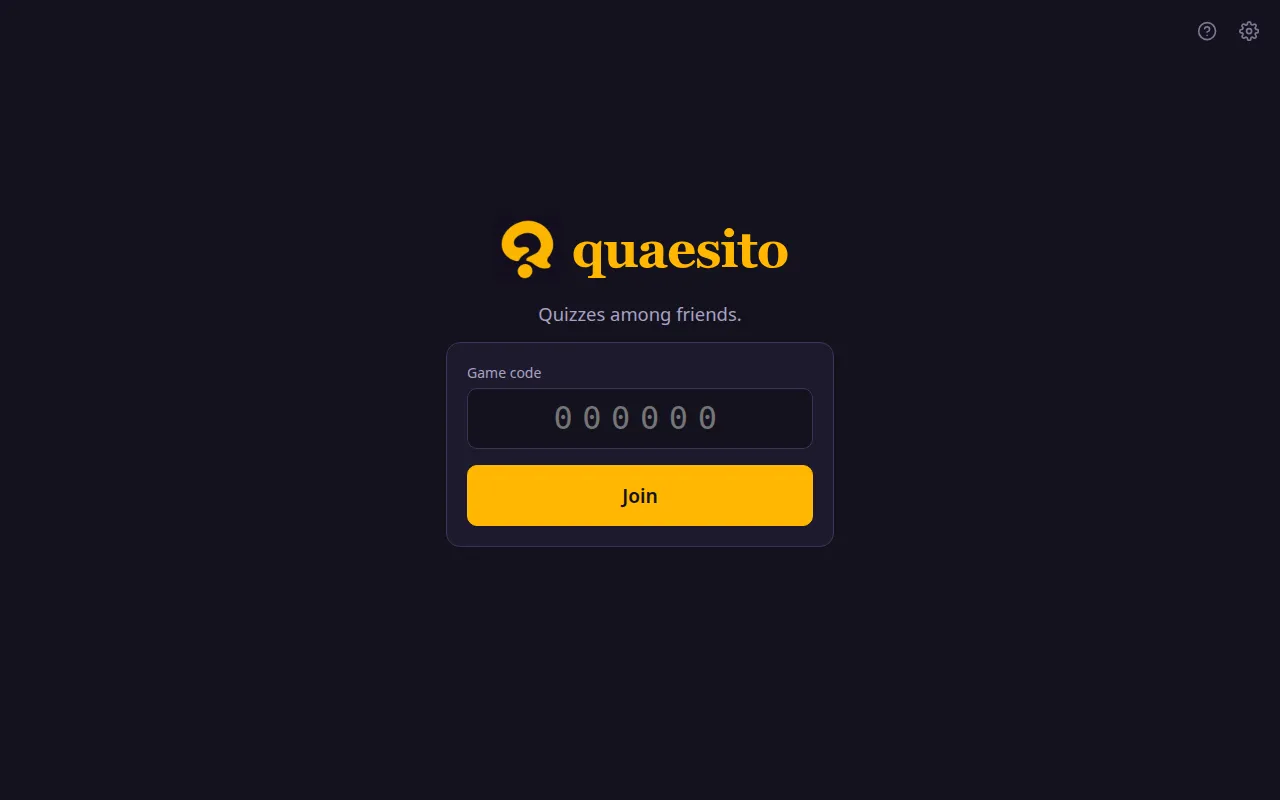
Click the icon in the top right corner and type the admin password from the server window. A new password is made at every start unless you choose your own (see configuration). A login lasts 12 hours: the big screen uses it too, so log in on the computer that runs it shortly before the game.
3. Try the demo quiz
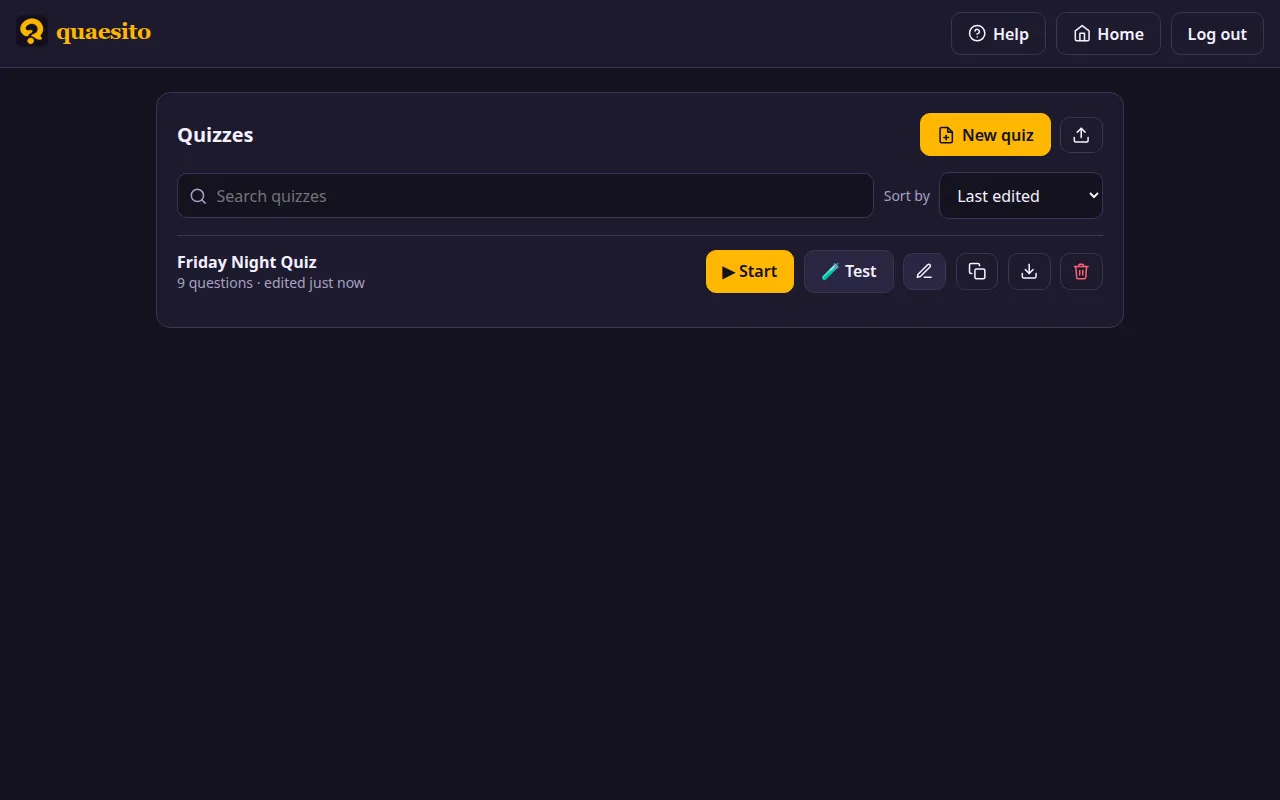
Your quiz list starts with a Demo quiz holding one question of each kind. Press 🧪 Test to play it with pretend phones next to the big screen (see testing a quiz), or open it to see how it is made. Delete it when you no longer need it; it does not come back.
4. Play with friends
Press ▶ Start next to a quiz and put the big screen on the TV. Friends join by scanning its QR code with phones on the same Wi-Fi as the computer: see running the game. If phones cannot connect, see troubleshooting.
This guide comes with the app too: the icon on the home page and Help in the admin pages open it, even without an internet connection. That copy matches the version you downloaded; this website follows the latest development version, so it may describe features not released yet.
Your data
Your quizzes, pictures and games are kept in the data folder next to the start script. Copy it
to back up or move everything to another computer.
Updating to a new version: unpack the new download into a new folder and, before starting
it, copy the data folder from the old folder into the new one. Otherwise the new version starts
with an empty data folder of its own, and your quizzes seem to be gone (they are still in the
old folder). Check the
changelog for what changed.
Next: build your first quiz.